User Guide 📖
Everything you need to run a Family Constellation session on The Field — for facilitators and clients. Inside the app you'll also find a guided tour on first use, replayable any time from the “?” button in the toolbar.
🚀 Getting started
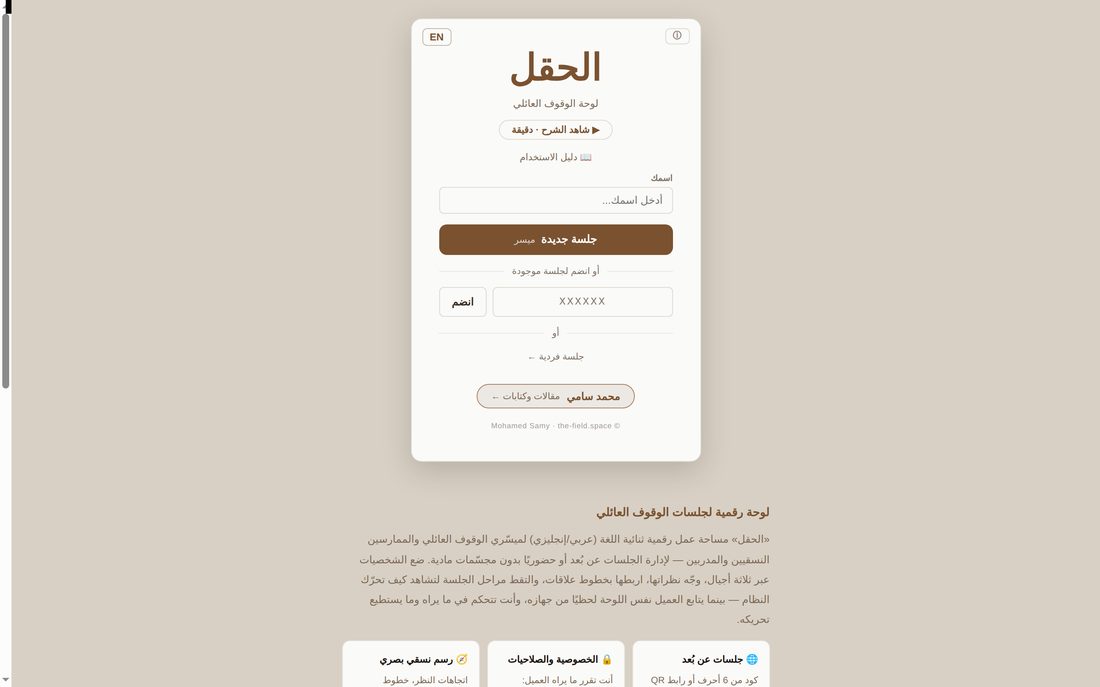
- Enter your name on the home screen.
- Choose your path:
- New Session — start as a facilitator and get a 6-character share code.
- Join — enter an existing session code as a client.
- Solo session / Continue — work locally on your device, offline; your work is saved automatically.
🧍 Adding & moving figures
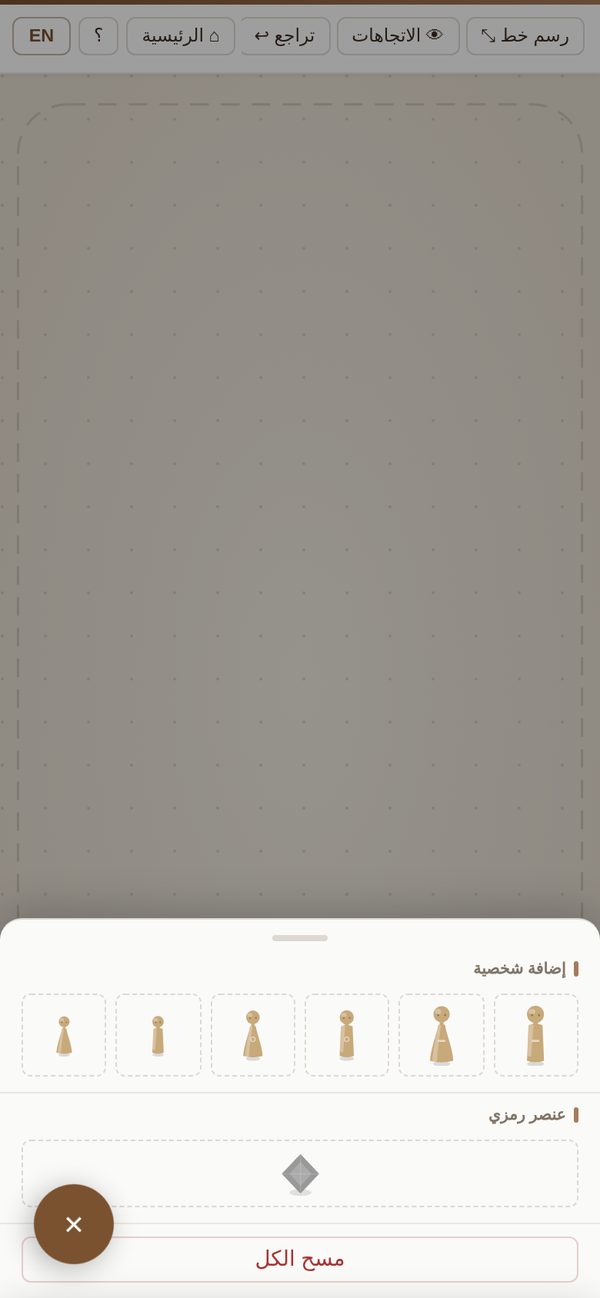
- From the side panel pick a male or female figure across three generations (size shrinks with older generations), or an abstract symbol for a concept.
- Click an empty spot on the board to place it.
- Drag it anywhere. Drag the background to pan; zoom with the mouse wheel or a two-finger pinch — the zoom percentage shows in the zoom buttons at the bottom of the board: click it to return to 100%, or press ⤢ to fit all figures.
🎯 Properties & gaze direction
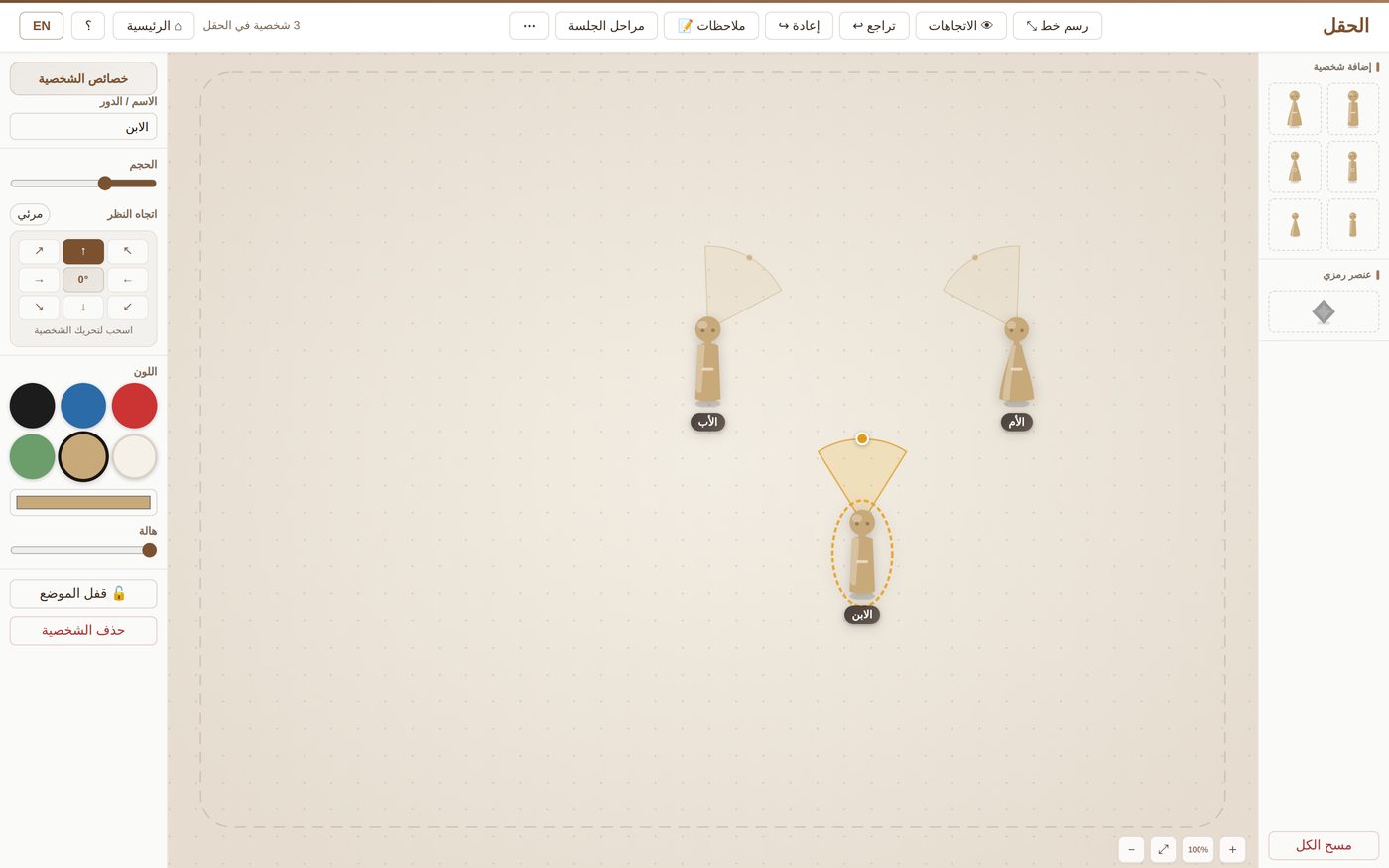
Selecting a figure opens the properties panel:
| Property | Function |
|---|---|
| Name / Role | Label the figure (Father, Mother, Self…). |
| Size | Scale the figure up or down. |
| Color | Preset colors with meanings (energy/anger, calm/distance, weight/loss…) or a custom color. |
| Gaze direction | Aim with the compass, or drag the gold dot in front of the figure. |
| Halo | A glow to emphasize a figure. |
| 🔓 Lock position | Prevents accidental moves (shows 🔒). |
🔗 Relation lines
- Press Draw Line ⤡ in the toolbar.
- Click the first figure, then the second.
- Select a line to change its color (gray/red/green) and style (solid/dashed/thick), or delete it.
↩ Undo & redo
Every step is reversible: Ctrl+Z (⌘Z on macOS) to undo, Ctrl+Shift+Z or Ctrl+Y to redo — or use the toolbar buttons.
🎬 Session stages
The Stages button (facilitator / solo mode) lets you capture the board at any moment. Click a stage to load it back and see how the constellation evolved — loading is itself undoable. In a live session the client sees the loaded stage immediately.
📝 Notes & saving an image
- Facilitator notes — visible to the client only if the facilitator allows it.
- Client's private notes 🔒 — never visible to the facilitator.
- Save Image 📸 — downloads the board as a PNG without selection indicators.
📡 Live sessions
For the facilitator: after opening a session, a bar shows the code and connection status. Share 🔗 shows a link and a QR code the client can join with directly. Client Permissions control:
- Can move figures — may the client drag?
- Can see names/roles — are labels visible to them?
- Can see notes — can they read the facilitator's notes?
For the client: you follow the board in real time from your device, and can always write your private notes.
❓ FAQ
Do I need internet? For live sessions, yes; local mode works offline and is saved in the browser.
Will I lose my work if I close the page? No — local work is saved automatically and a “Continue” button appears when you return.
How do I replay the guided tour? From the “?” button in the toolbar → “Quick tour”. You'll also find the 1-minute video intro there.